Ordering Cards
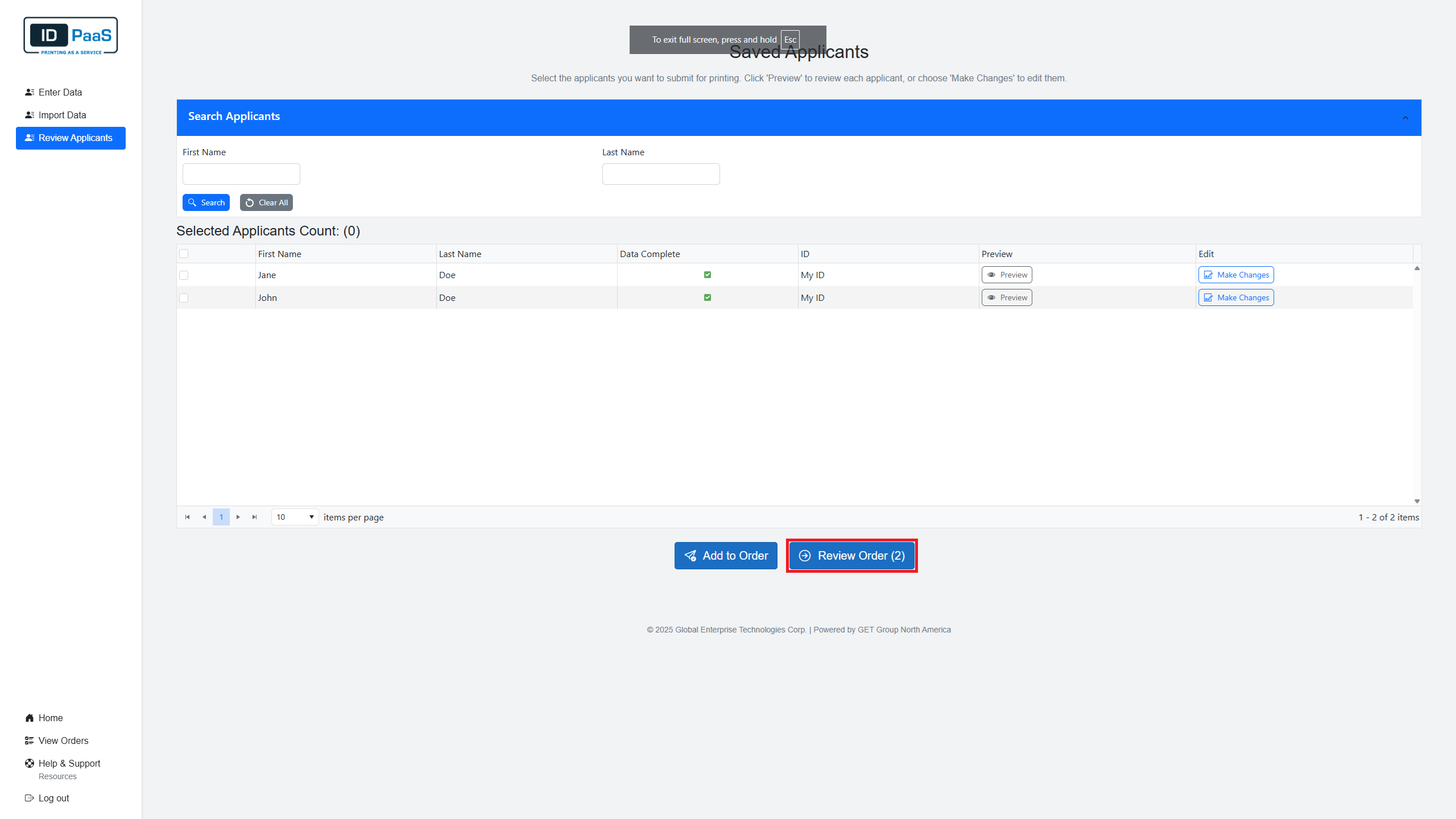
To Order cards, please click the "Review Saved Applicants & Order" button on the home page.
Ordering Cards
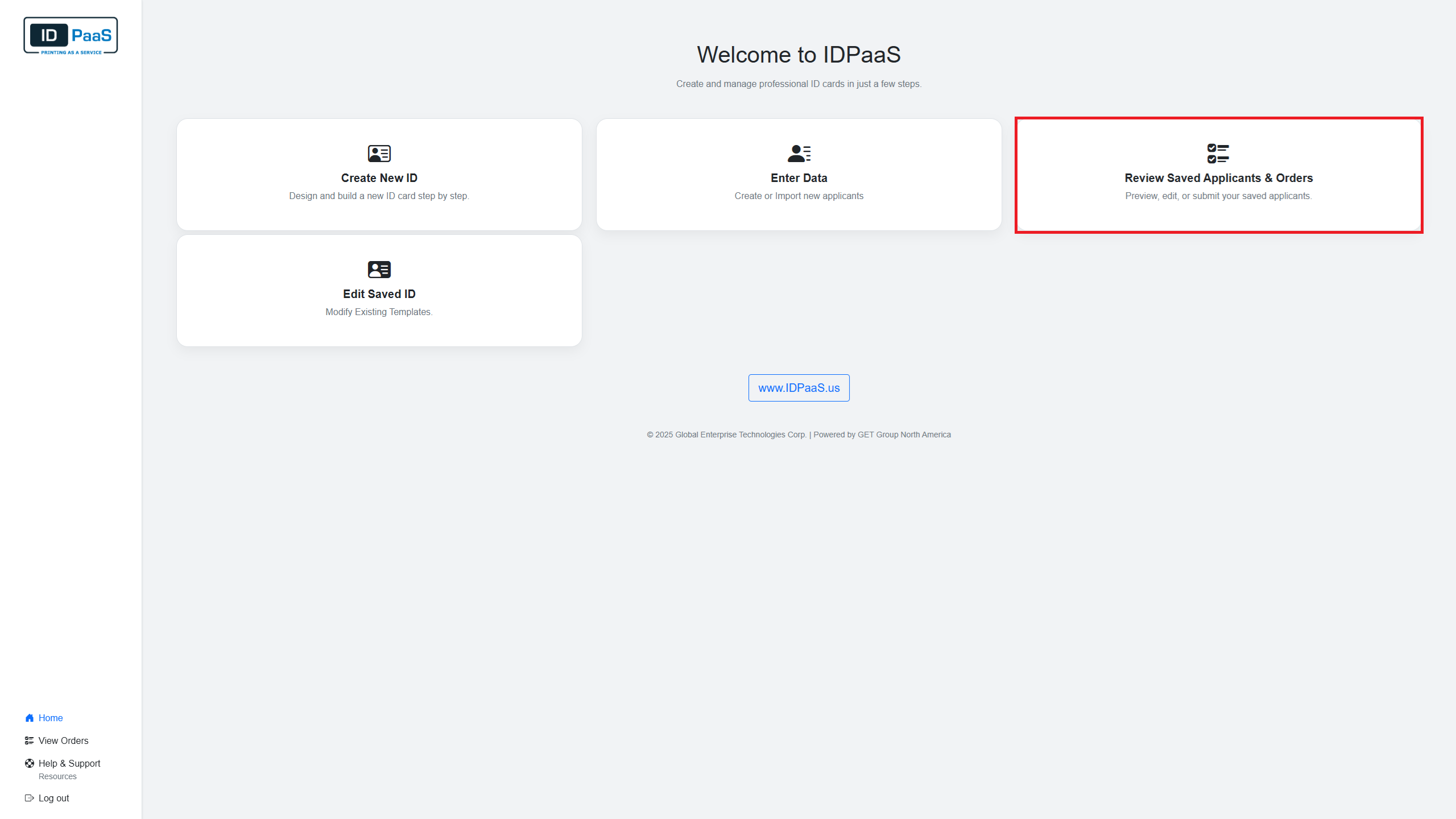
After clicking the button, you will be brought to the Review Applicants page. On this page you will see all the applicants that you have created from the Data Entry page.
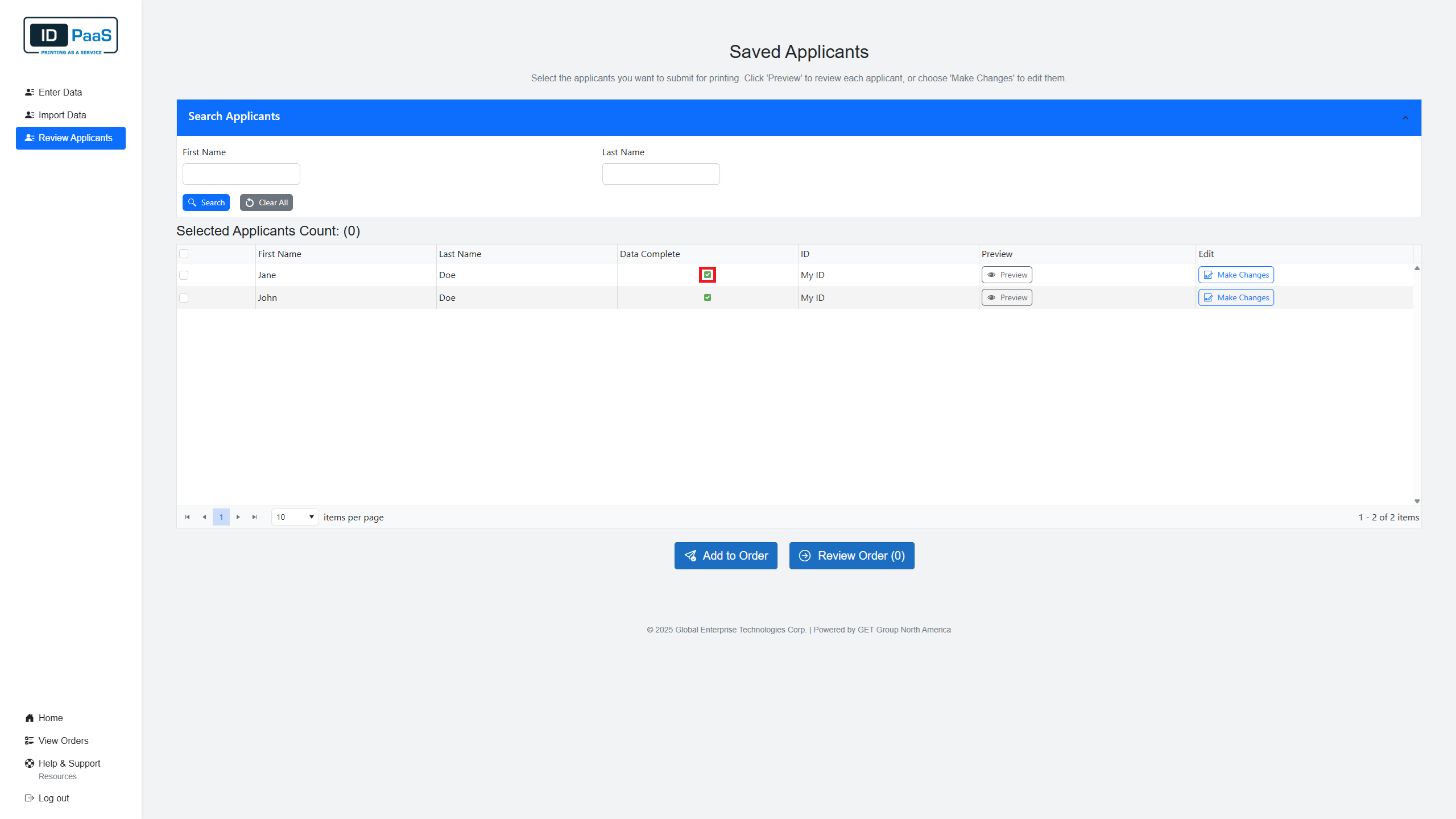
Before you submit your Order, you can double-check that all your Applicants information is correct. Under the Data Complete Column, you will see a box that. If that box contains a green check mark, that indicates that all that applicant's information has been filled out. If that is not filled out, then there are some information fields that have not been filled out.
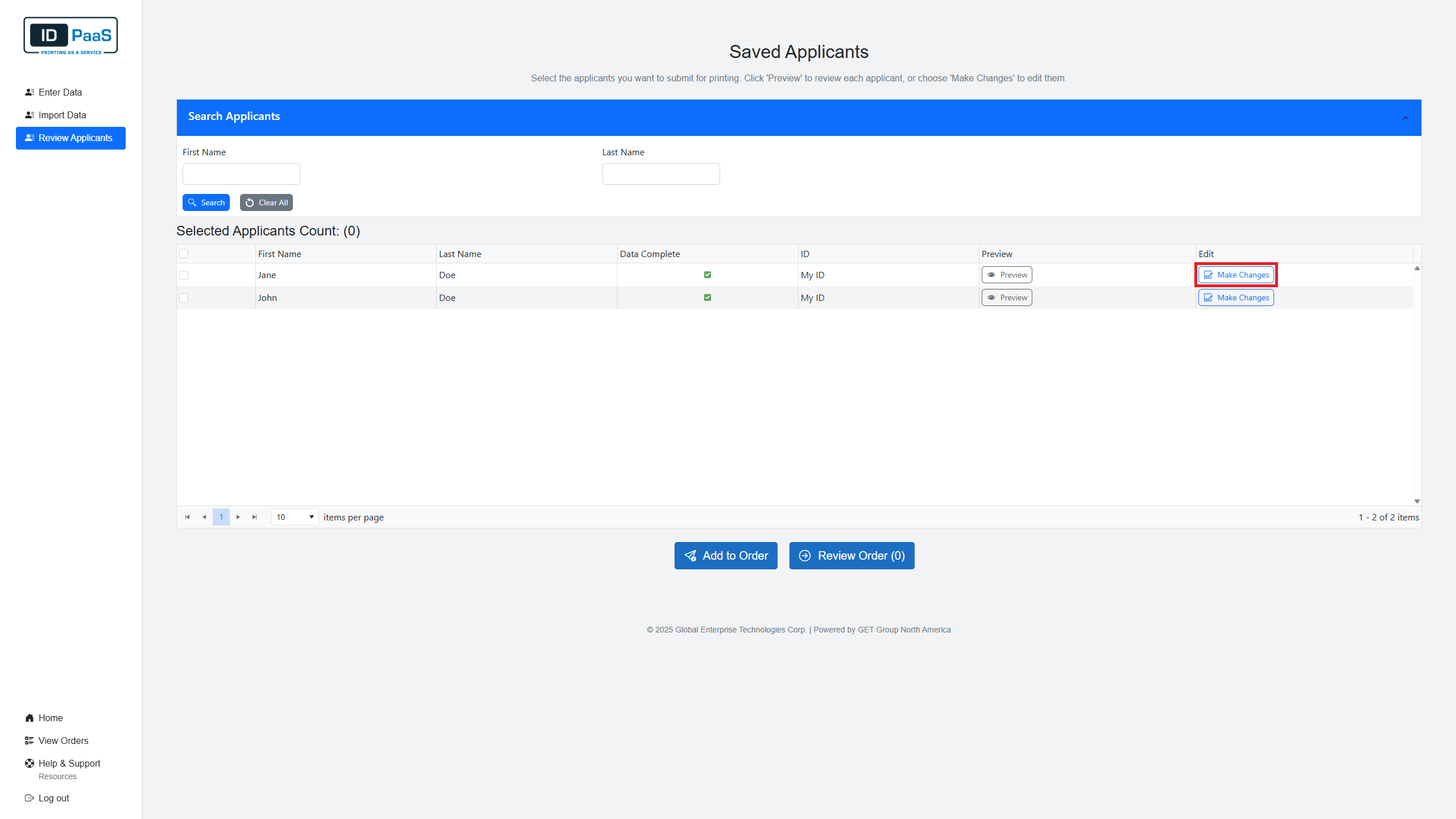
If you would like to change your applicants information you can click the "Make Changes" button on the row of the person you would like to modify. This will bring you back to the Enter Applicant data Page where you can fill modify this Applicants information.
Please Click Applicant to review how to Enter in Applicant information.
Adding Applicants to your Order
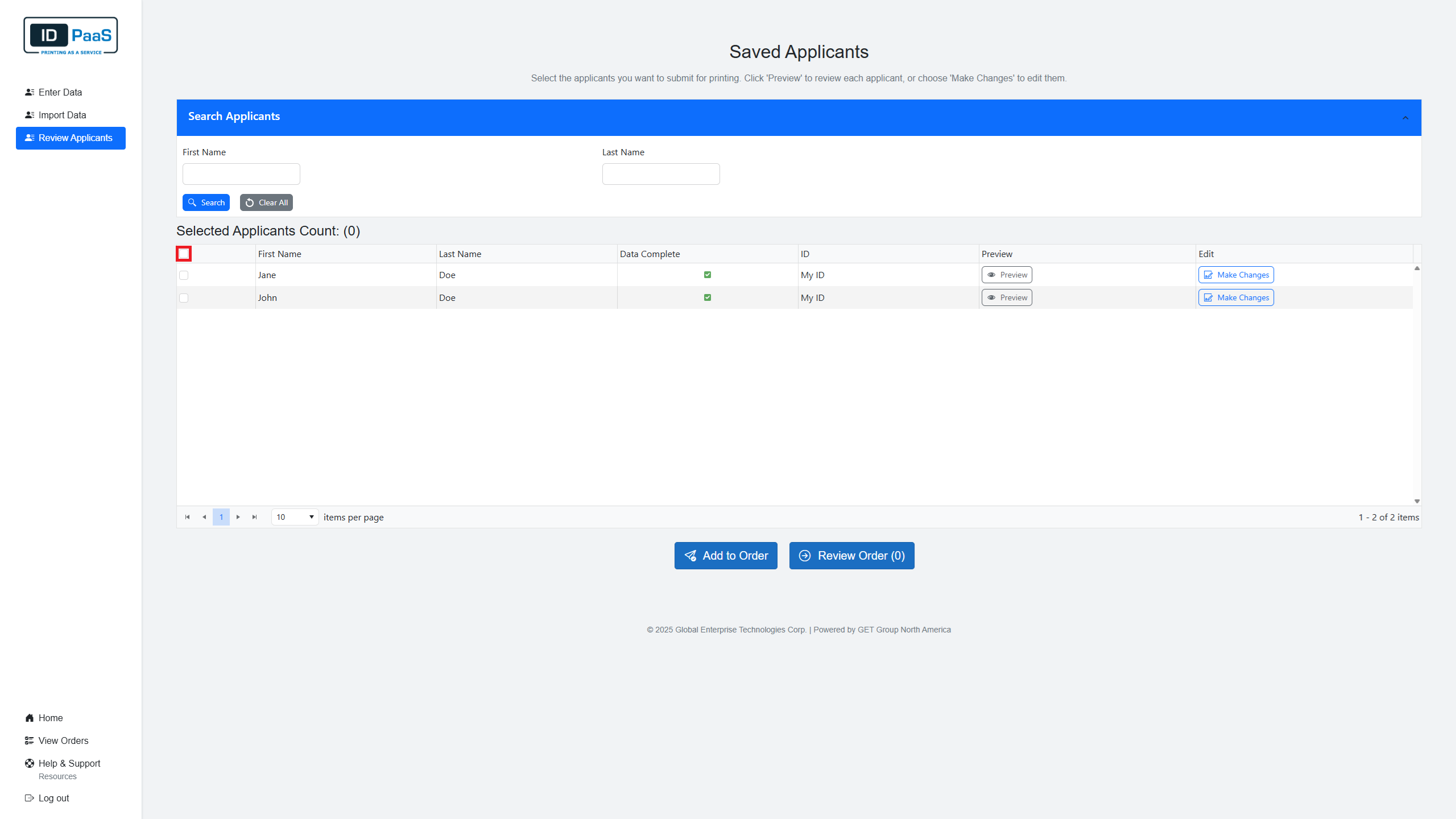
On the Review Orders page, you will see a box next to the Applicant's Name. Clicking on this will select this Applicant and add him to your current selection. Or alternatively, you can select the box on the top of the table as highlighted below in red. This will select all the Applicants on this current page.
Once the all the applicants are selected, you can click the "Add to Order" button in the button bottom of the screen.
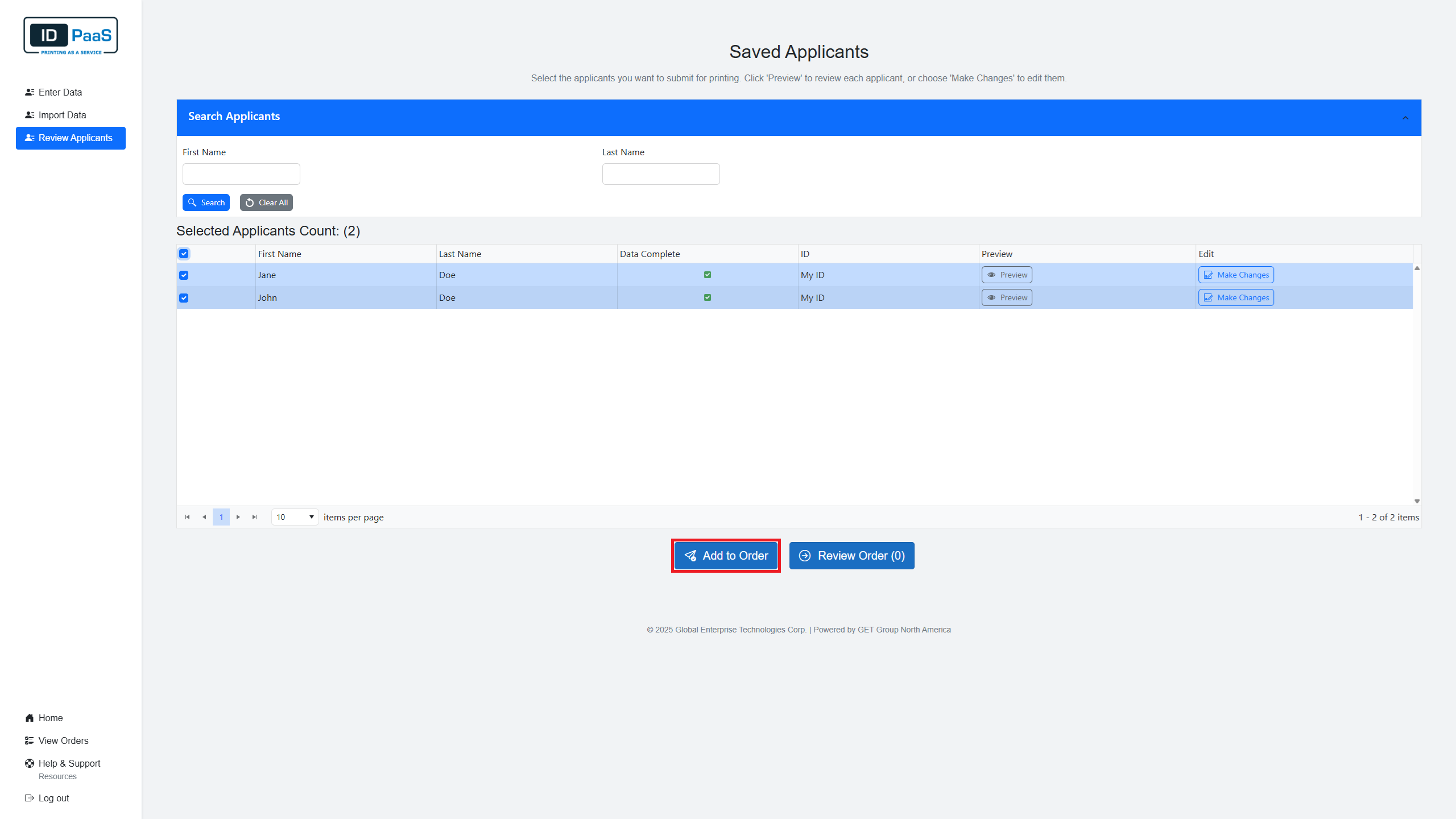
After that you have to click the Review Orders page to review your order.