Data Entry for Applicant Data
There are two ways to go to the Enter Applicants Data page. By Creating or Editing an ID, or by clicking the "Enter Applicant Data" button on the main page.
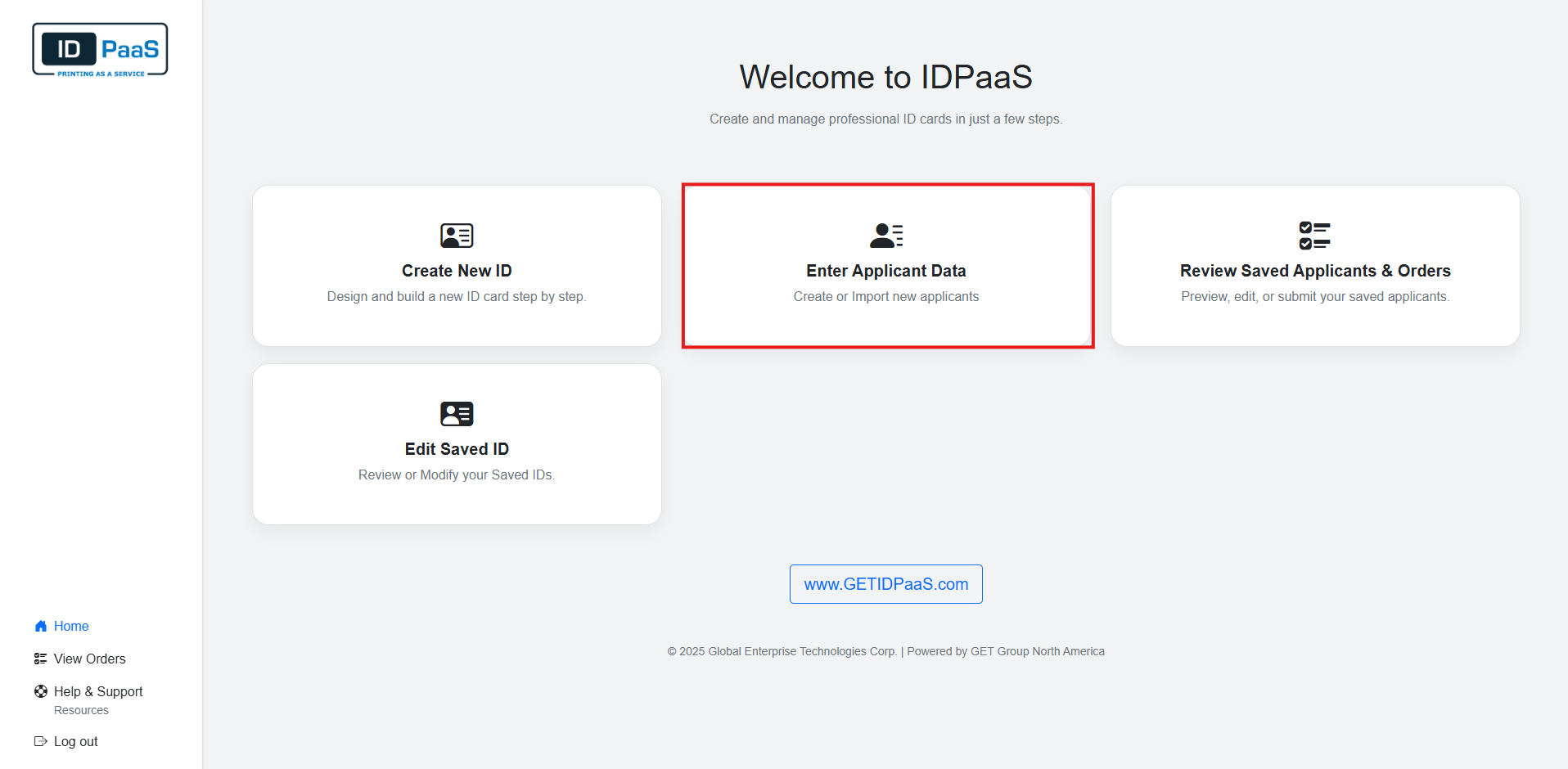
You will need to create an ID before accessing the Enter Applicants Data page.
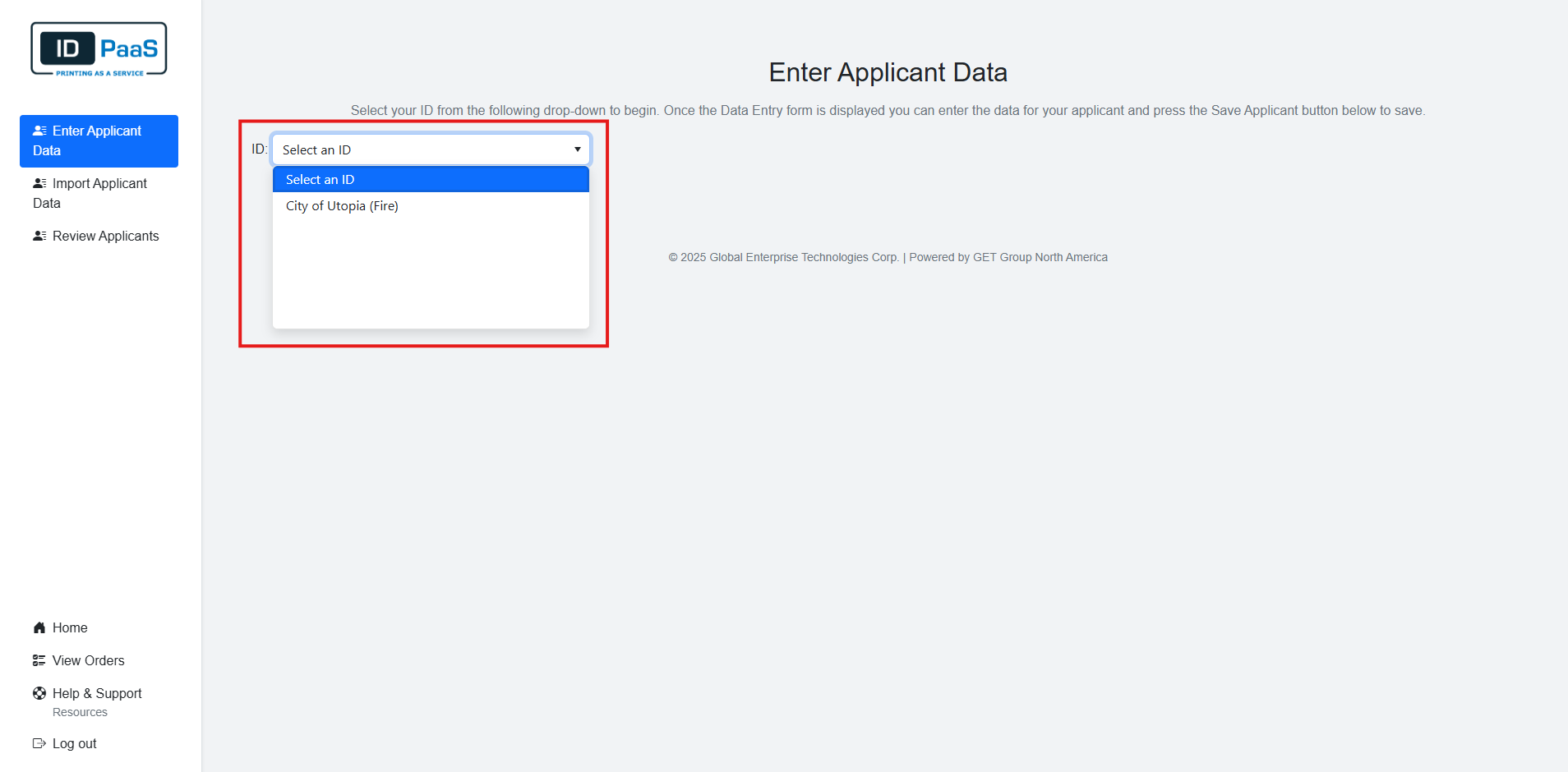
Once you load onto the page, you will see a brief description followed by a drop-down list. Clicking on the drop-down list will reveal all of your saved IDs. Please select the ID you wish to create an applicant for.
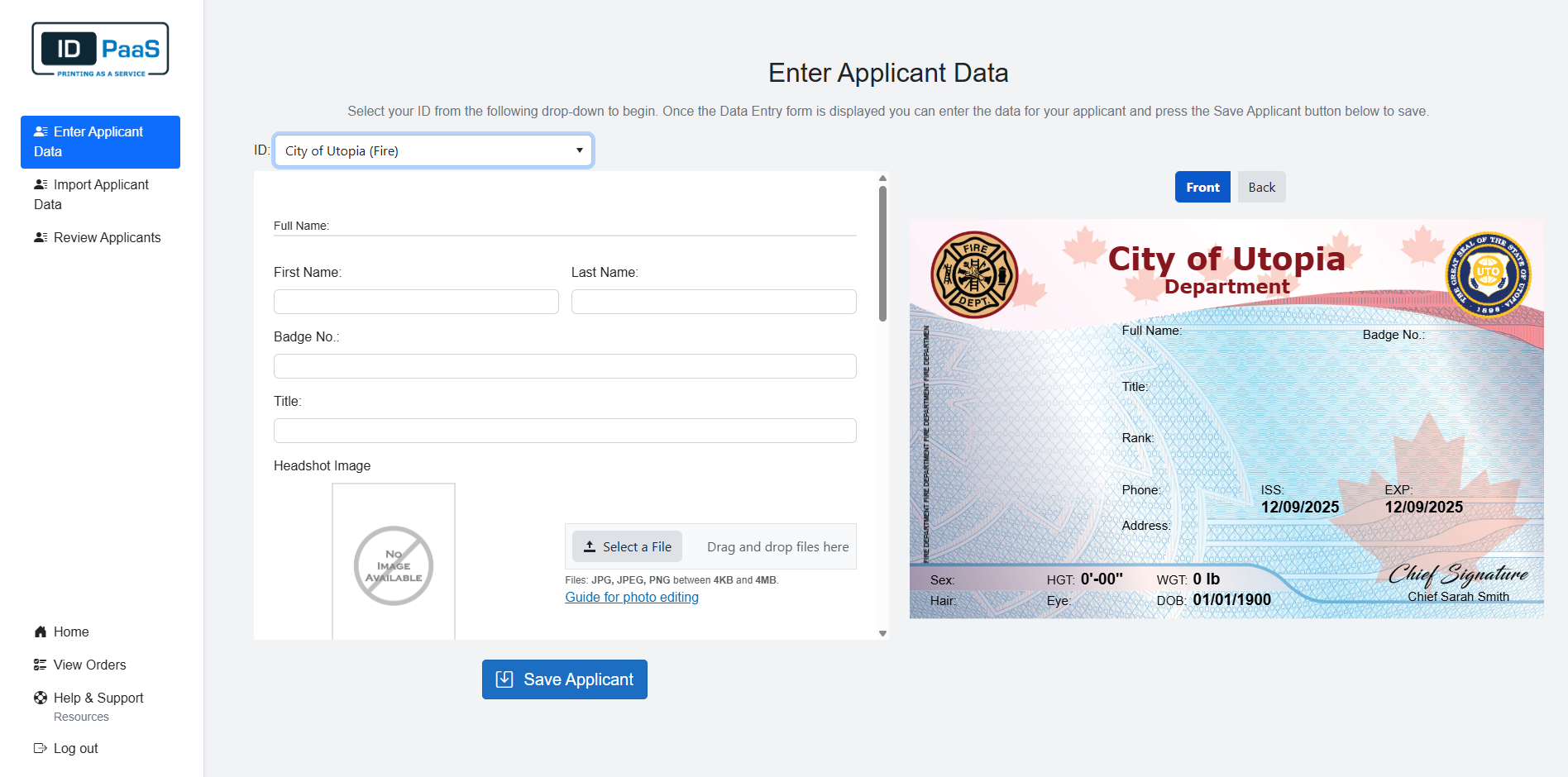
After you select an ID, the fields you have selected in Arrange Layouts will appear for you to fill them out.
Like in the Customize Card Section, when you fill out a field or upload a logo, you will get a live rendering of that change on the card on the right. There are a few different types of Data you can enter or select. Some fields will only allow certain text, so you must select from a drop-down list. Clicking on any date field will bring up a calendar to help you with selecting a Date. There will be an upload field for the Applicants portrait.
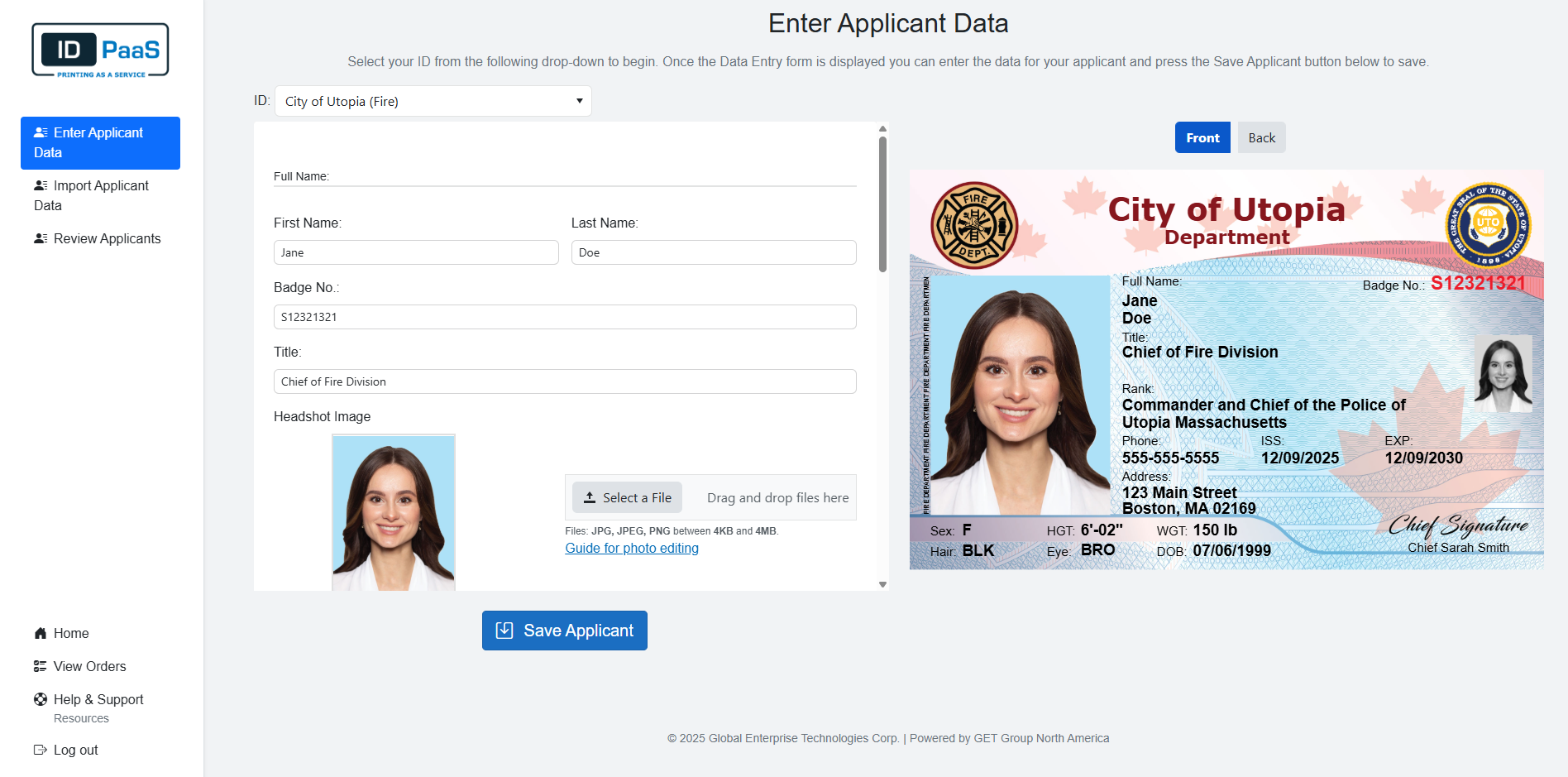
Once you are satisfied with your Applicant, please click the "Save Applicant" button at the bottom. The Applicant will be saved, and it will clear out the information for your next applicant. At any time, you may switch the ID if your Applicant is using a different ID.
There are a few Restrictions for Enterable fields. If you break any of the restrictions, a red mark will appear over the text box and if you press the Save Applicant button, a warming sign will appear.


After fixing the issues and clicking "Save Applicant" again, the save will briefly display a green check mark before clearing the screen for you to enter the next applicant.
Down below are the Character Limits for the fields in the UI.
| Fields | Character Limits |
|---|---|
| First Name | 40 Characters |
| Last Name | 80 Characters |
| Badge No | Infinite |
| Title | 120 Characters |
| Rank | 120 Characters |
| Address Line 1 | 108 Characters |
| City | 20 Characters |
| Zip code | 10 Characters |
The IDs have their own character limits, please review the live rendering before you save your applicant and review the Print Preview before submitting your order.
This is not the only way to add applicants; you can also import applicants via an Excel or CSV file.